

More research now starts in an AI app or a terminal than in a browser tab. You ask Claude about a company, or a coding agent pulls data into a script. aVenture now meets you in both places, with the same data and the same account as the website.
- The aVenture MCP server connects Claude, ChatGPT, Claude Code, or any MCP client to aVenture. You ask in plain English, and the assistant looks up companies, people, funding, and news for you.
- The
aventureCLI puts the same data in your terminal, for you or for an agent that runs shell commands.
Both sign in with your aVenture account in the browser. There is no API key to create or paste. Free and paid plans both work.
Connect your AI app
The MCP Quickstart has setup steps and prompts for each AI app. A prompt can perform the setup its app exposes or guide you through the settings. Complete account sign-in and consent yourself, then enable the connector in your conversation. Verify the connection by asking for Stripe's profile; a connector that returns it is working.
To connect by hand, add a custom connector with these settings:
| Setting | Value |
|---|---|
| URL | https://mcp.aventure.vc/mcp |
| Transport | Streamable HTTP |
| Authentication | OAuth discovery and automatic client registration (DCR) |
In Claude and ChatGPT, add the URL as a custom connector and use automatic OAuth registration. Leave manually entered client credentials empty. In Claude Code:
claude mcp add --scope user --transport http aventure https://mcp.aventure.vc/mcp
claude mcp login aventure
If your version does not provide mcp login, run /mcp, select aventure, and sign in. In Researchly, aVenture is built in: open your profile, choose MCP servers, and choose Connect aVenture.
Compatibility fallback
If your client does not support automatic registration, the existing public OAuth client ID is KL7mINzGk0le0QiD; leave its client secret empty. Check the registered redirect URIs before using it. A different callback needs a compatible registration. For a Claude Code version that needs the fixed client:
claude mcp add --scope user --transport http \
  --client-id KL7mINzGk0le0QiD --callback-port 6276 \
  aventure https://mcp.aventure.vc/mcp
Then run /mcp, select aventure, and sign in.
Ask questions, not API calls
Once connected, ask the way you would ask a colleague:
- "Look up Stripe on aVenture and summarize its funding history."
- "Which company owns ramp.com, and who founded it?"
- "Find seed-stage climate software companies in Austin."
- "Who is Patrick Collison, and which companies is he connected to?"
The assistant picks from a small set of tools on its own:
| Tool | What it does |
|---|---|
aventure_lookup |
Finds a company or person by name, website, or LinkedIn URL |
aventure_search |
Finds companies, people, and news from a description |
aventure_read |
Reads a full profile and its funding rounds, people, and news |
aventure_help |
Finds the right operation for a task |
aventure_job |
Requests a research update for a company or person |
Behind those tools sits the whole aVenture API, so an assistant can also read a company's brand kit, identify every company and person named in a news article, or start a research update on a record you ask it to refresh. If you write your own agent, Call MCP Tools Directly explains how to name each operation.
Research from the terminal
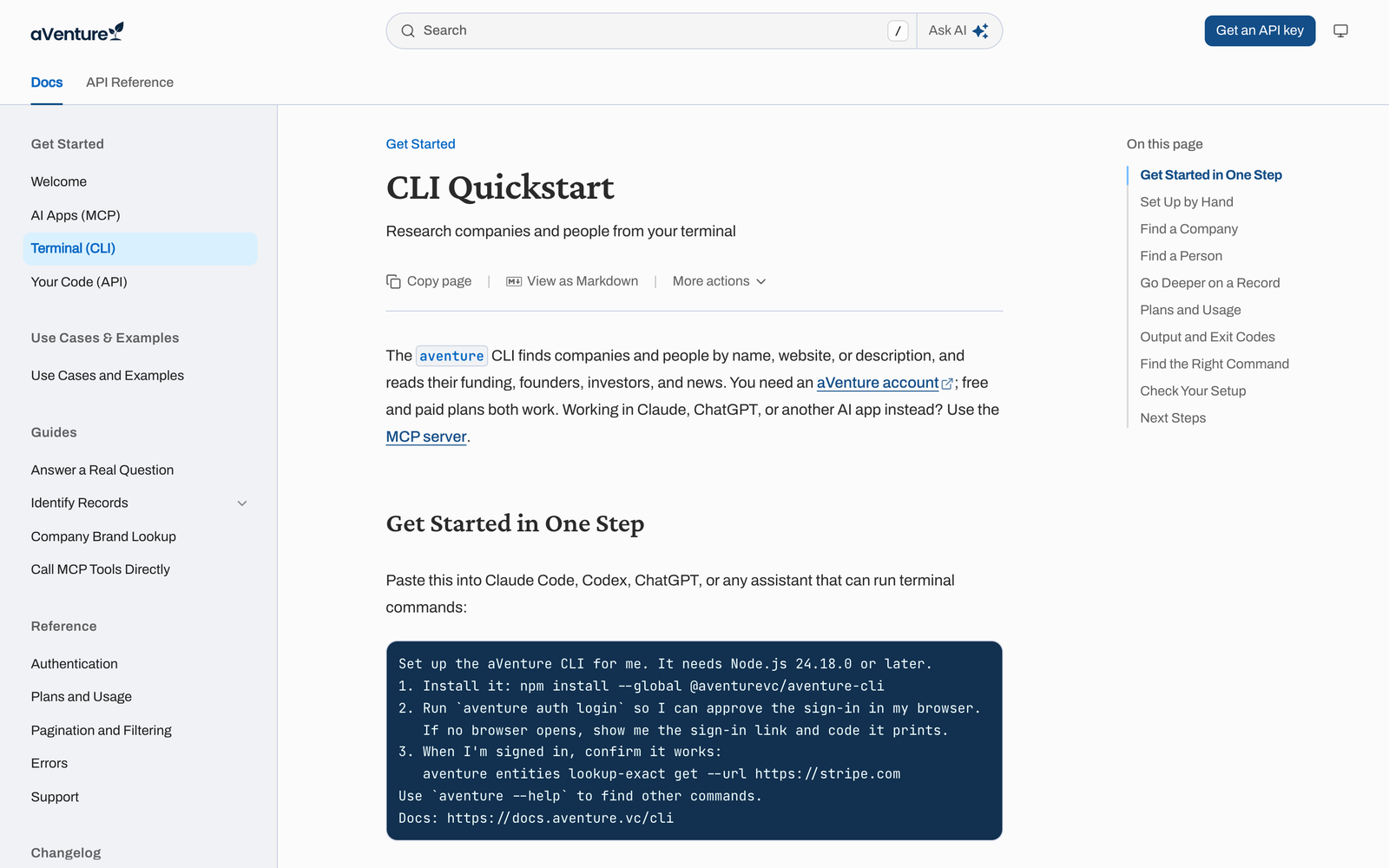
The CLI Quickstart has the same kind of one-step prompt for Claude Code, Codex, or any assistant that can run terminal commands. By hand, it takes two commands and Node.js 24.18.0 or later:
npm install --global @aventurevc/aventure-cli
aventure auth login
aventure auth login opens your browser for OAuth sign-in. Over SSH or in a container, run aventure auth login --no-browser. If the issuer advertises device authorization, approve the returned link and code on your device. If it is unavailable, follow the reported error or use the separate API-key approval fallback, aventure auth login --key --no-browser. For CI, set AUTH_TOKEN to an API key instead.
Then ask:
aventure lookup --kind ENTITY --name Stripe
aventure lookup --kind ENTITY --name Mercury --context "banking for startups" --location "San Francisco"
aventure search natural entities --query "seed-stage climate software companies in Austin" --size 5
aventure entities fundraise-rounds list --entity-id <id>
In a terminal, results print as a table or labeled fields. When the output is piped, the CLI prints JSON, and its exit code tells a script whether the call worked. aventure auth doctor checks your version, connection, and sign-in, and names the fix for each problem.
Plans, usage, and upgrades in the same place
The website, the API, the CLI, and the MCP server all draw on one account. The free plan reads profiles by website, such as "Read aVenture's profile for ramp.com." Finding a company or person by name or description needs AI Plus or AI Pro.
You do not need to leave the conversation to manage your plan. aventure billing subscription get shows your plan and current allowance usage, and aventure billing plans list lists every plan with monthly and annual prices. In an AI app, ask the assistant to list aVenture plans or upgrade you; it uses the same plan list and checkout. When an allowance runs out, the answer names the limit you reached and how to raise it. Plans and usage has the details.
Get started
Create an aVenture account, then follow the MCP Quickstart or the CLI Quickstart. The Use Cases and Examples page shows the MCP call and CLI command for each common job. The CLI is @aventurevc/aventure-cli on npm, and the source is on GitHub for both the CLI and the MCP server.

